How to Copy Any CV Design You Like (Free CV Maker)
# How to Copy Any CV Design You Like (Free, With Your Own Details and Photo)
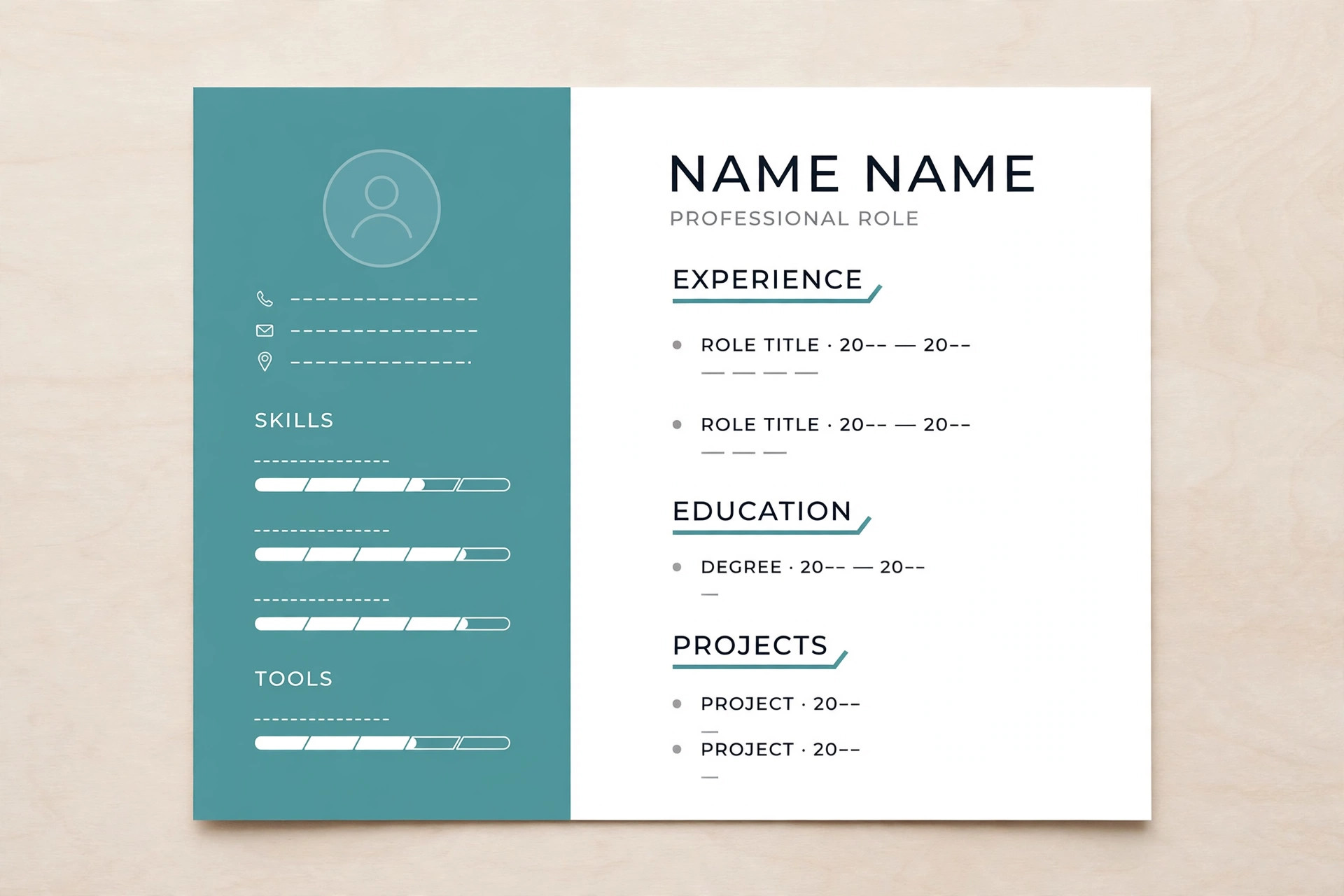
You have probably seen it before. You are scrolling through job advice, a friend's LinkedIn post, or a sample CV someone shared, and you stop on one design. The sidebar is a calm colour. The name sits exactly where it should. The sections are easy to scan. It looks like the kind of CV that gets read, not the kind that gets skimmed and forgotten.
Then you look at your own CV, and the gap between the two feels enormous. You could try to rebuild that design in a word processor, but that is where most people give up. Matching a colour by eye, lining up a sidebar, getting a photo to sit neatly in a circle, keeping the spacing even on two pages — it is fiddly work, and it can eat an entire evening without ever looking quite right. Paid template sites offer a shortcut, but they usually ask you to sign up, and the design you liked is rarely the one on offer.
There is a simpler way to close that gap. ToolPilot Pro's free CV Maker from Image lets you start from a CV design you already like and end up with a CV that carries your own name, your own photo, and your own experience. You upload a picture of the design you admire, and the tool builds your CV in that style. You do not need design skills, you do not need to install anything, and you do not pay anything. This guide walks you through the whole process, explains how each part works, and helps you choose the layout that suits your situation best.
What the CV Maker from Image Actually Does
The idea behind the tool is straightforward. Instead of asking you to pick a template from a fixed list and hoping one of them is close to what you want, it starts from a reference you choose yourself. That reference can be a screenshot of a CV you liked, a photo of a printed CV, or any CV image you have saved on your device. The tool uses that image as the style guide for your new CV.
Here is what happens, in plain terms:
- You upload the reference image. It appears on the page so you can compare it with your work as you go.
- The tool reads the colour from the image. It samples the image in your browser and finds its dominant non-white colour, then applies that colour to your new CV. You can see the detected colour and change it any time if you prefer a different shade.
- You choose a layout. There are five: left sidebar, right sidebar, top header band, two-column, and single-column. You pick the one that matches your reference most closely.
- You add your own photo and details. Name, professional title, contact information, a short summary, your experience, your education, your skills, and your languages.
- You watch a live preview. The CV updates as you type, so there are no surprises at the end.
- You download a clean PDF. One button opens a print view, and you choose "Save as PDF" in the print dialog. The result is a print-ready A4 CV with no watermark and no site branding on it.
Everything happens inside your browser. Your reference image, your photo, and your personal details are never uploaded to a server, never stored, and never shared. When you close the tab, everything is gone. That matters, because a CV contains exactly the kind of personal information you should not hand to a random website without thinking about it.
The tool is free, with no account and no sign-up. If you already use the site's Free Resume Builder, think of this as its style-focused sibling: the Resume Builder gives you a clean, standard resume quickly, while the CV Maker from Image is the one you reach for when you have a specific look in mind and want your CV to match it.
Step-by-Step Walkthrough
Step 1: Find a Reference CV Image You Like
Before you open the tool, pick the design you want to copy. Good references are easy to find: a sample CV from a career advice article, a template screenshot, a CV a friend shared (with their permission, and ideally with their personal details blurred or cropped out), or a design you saved from a portfolio site.
A few things make a reference more useful:
- A clear, upright image works best. A straight screenshot or scan beats a tilted photo of a screen.
- Colour matters more than text. The tool reads the design's colour, not its words. Even a reference in another language works, as long as the layout and colour are visible.
- One strong colour is ideal. Designs with a single clear accent colour — a deep green, a navy blue, a warm burgundy — transfer most cleanly. Very pale or multi-coloured designs can still work, but the detected colour may need a manual tweak, which the tool lets you do.
You do not need the original file or any special format. A JPG or PNG screenshot is fine.
Step 2: Upload the Reference and Check the Detected Colour
Open the CV Maker from Image and upload your reference in the first step. The image appears on the page, and the tool samples it to find its dominant non-white colour. It ignores the white background of the page and the pale greys, and looks for the colour that actually defines the design — usually the sidebar or header colour.
Be honest with yourself about this step: automatic colour detection is a smart shortcut, not magic. It reads the strongest colour in the image, which is usually exactly the colour you want. If your reference has several colours, or the photo is dark or blurry, the detected shade may be a little off. That is why the detected colour is shown in a colour picker you can adjust. Nudge it darker or lighter until it matches what you see in your reference. You can also pick from preset swatches if you want a clean, standard shade.
The colour you choose is applied consistently across the whole CV: the sidebar or header band, the section headings, and the skill bars. That consistency is a large part of what makes a CV look designed rather than assembled.
Step 3: Choose the Layout That Matches Your Reference
Now pick one of the five layouts. This is the structural decision, and it is worth a minute of thought, because layout changes how a reader's eye moves across the page. The five options are explained in detail later in this guide, but the quick rule is simple: choose the layout that looks most like your reference. If your reference has a coloured column on the left with the photo at the top, choose left sidebar. If the name and photo sit in a band across the top, choose the top header band. If the reference is one plain column with a centred name, choose single-column.
You can switch layouts at any point, and the preview updates immediately, so there is no penalty for trying two and comparing them side by side with your reference.
Step 4: Upload Your Own Photo
The photo step is where many CV builders get awkward, so this one is kept simple. Upload a clear head-and-shoulders photo, and it appears in the position your chosen layout implies — a circle in the sidebar layouts, a prominent spot in the header layout. If you do not want a photo on your CV, you can skip this step entirely: the tool shows your initials in its place, and the layout still holds together.
A couple of practical tips for the photo itself:
- Use a plain, well-lit photo. A neutral background and natural light do more for a CV photo than any filter.
- Crop to your face and shoulders. A distant full-body shot shrinks to nothing at CV size.
- Dress as you would for the job you are applying for. The photo is part of the first impression, so it should match the role, not the holiday.
Whether to include a photo at all depends on where you are applying. In some countries and industries it is expected; in others it is unusual or even discouraged. If you are unsure, check what is normal for your target employers and decide accordingly. The tool supports both choices.
Step 5: Fill In Your Details
This is the main writing work, and it is where your CV is actually won or lost. The form is divided into the sections employers expect:
Name and professional title. Your full name, and a short title that describes the role you are targeting — "Registered Nurse", "Junior Web Developer", "Primary School Teacher". A clear title tells a reader in two seconds what you are applying for, which is exactly what a busy recruiter needs.
Contact information. Email, phone, location, and a website or LinkedIn address if you have one. Keep this section short and current. Double-check the email address and phone number, because a single typo here can cost you an interview you never hear about.
Professional summary. Two or three sentences about your experience, your strengths, and what you are looking for. This is not the place for your life story. Write it for the specific kind of role you want, and mention the one or two things that make you a strong candidate for it.
Experience. Add one entry per role, most recent first. Each entry has a role title, a company or organisation, a period, and a description. The description is where most CVs go wrong: people list duties ("responsible for patient care") when they should describe what they actually did and what changed because of it. Short, concrete lines beat long, vague paragraphs. If you are a student or recent graduate, part-time work, internships, and volunteering all belong here — what matters is showing reliability, skills, and results, not only formal job titles.
Education. Degree or qualification, school or institution, and period. List your most recent or most relevant qualification first. If you are still studying, say so and give your expected completion date.
Skills. A comma-separated list of the skills the role asks for, written the way employers write them. If you want, you can add levels — for example, writing a skill with a number beside it — and turn on the level bars, which show each skill as a bar in the preview. Level bars look polished, but use them honestly: a bar that claims expert level in something you barely know will not survive an interview.
Languages. Another simple comma-separated list. If a language matters for the role, say how well you speak it rather than just naming it.
As you type, the live preview updates. That is the moment to catch problems early: a summary that runs too long, a job title that wraps awkwardly, a section that pushes the CV onto a second page. Fix them while you can see them, not after you have downloaded the file.
Step 6: Review the Live Preview Like a Recruiter Would
Before you download anything, spend two minutes reading your preview the way a stranger would. Recruiters often scan a CV in seconds before deciding whether to read it properly, so your preview needs to pass that first fast scan:
- Is the name and title instantly visible? They should be the first thing the eye lands on.
- Does the page look balanced? A sidebar that is much longer than the main column, or a large empty space at the bottom, makes the CV feel unfinished.
- Is anything cut off or overlapping? Photos, long words, and long job titles are the usual culprits.
- Does the colour help or distract? A strong accent colour should guide the eye to headings, not compete with the text. If the colour feels loud, darken it slightly.
If something looks off, change it now. Switch the layout, adjust the colour, shorten a description, or remove a skill that does not serve the role. The preview is free to experiment with, and every change is instant.
Step 7: Download the PDF
When the preview looks right, hit "Download PDF (Print)". A clean print view of your CV opens. Choose "Save as PDF" in the print dialog (or "Microsoft Print to PDF" on Windows) and save the file. What you get is a standard A4 PDF with real, selectable text — not a screenshot — which matters for two reasons. First, it prints crisply at any size. Second, applicant-tracking systems, the software many employers use to store and search CVs, can read real text far more reliably than an image.
Save the file with a clear name, ideally your name and the word CV, so the employer can find it again. Keep a copy for yourself, and if you apply for a different kind of role later, come back, load the tool again, adjust the summary and skills for that role, and download a fresh version. Because nothing is saved on the site, each visit starts fresh — which is also a good reason to keep your downloaded PDF safe.
The 5 Layouts Explained — and Who Each One Suits
Choosing a layout is easier when you know what each one is good at. Here is the honest rundown.
Left Sidebar
The classic modern CV. A coloured column on the left holds your photo, contact details, skills, and languages; the main column on the right carries your name, summary, experience, and education. This is the layout most people picture when they think of a designed CV, and it suits almost everyone: students, professionals, freelancers, and career switchers. It is also the layout that matches the largest number of reference images, because it is the most common CV design on the internet. If your reference has a sidebar on the left, this is your pick.
Right Sidebar
The mirror image: the coloured column sits on the right, and the main content flows on the left. Visually it feels a little less conventional, which can help a CV stand out in a pile of left-sidebar designs. It suits creative roles, designers, marketers, and anyone who wants a slightly fresher look without sacrificing readability. One practical note: in languages read left to right, the reader's eye naturally starts on the left, so the main content gets the first glance and the sidebar acts as a supporting panel. That is a genuine advantage for roles where your experience matters more than your skill list.
Top Header Band
A coloured band across the top holds your photo, name, title, and contact line, and the rest of the CV flows in a single column below it. This layout feels formal and confident, and it suits senior professionals, managers, and people applying for traditional corporate or public-sector roles. It also works well when you do not want a photo to dominate: the header keeps everything in one strong horizontal block and lets the experience section take the full width of the page. If your reference has a bold coloured header, this is the layout to choose.
Two-Column
Two columns without a full sidebar: the content is split into a narrower panel and a wider main area, with a light tint on the panel rather than a solid colour block. This is a good middle ground. It gives you the visual structure of a sidebar design but feels lighter and less heavy on ink if the CV is printed. It suits freelancers and multi-skilled applicants who have a lot of ground to cover — several skill areas, several short projects, a mix of work and study — because the panel keeps secondary information organised without pushing the main story off the page.
Single-Column
One plain column, centred name at the top, sections flowing straight down. It is the least flashy layout, and that is precisely its strength. Single-column CVs are the safest choice for applicant-tracking systems, because there are no sidebars, no text boxes, and no unusual ordering for the software to misread. They also suit conservative industries — law, finance, government, healthcare administration — where a plain, serious CV is expected. If you are applying through an online portal that parses CVs automatically, or you simply want zero risk of a formatting problem, choose single-column. You can still use the detected colour for your headings, so the CV keeps a touch of the reference design without any structural risk.
A practical rule of thumb: if a human will read your CV first — you are emailing it directly, handing it in, or applying to a small company — a sidebar or header design is a fine choice. If a machine will read it first — a large company's application portal — single-column is the safest bet. When in doubt, make both: the tool lets you switch layouts in seconds, so you can download a designed version for humans and a single-column version for portals.
Tips for a Strong CV (Whatever the Design)
A beautiful layout cannot rescue weak content, and strong content can survive a plain layout. Keep these principles in mind while you fill in the form:
Tailor the CV to the role. A CV written for every job is a CV written for no job. Read the job description, note the skills and experience it asks for, and make sure those exact things appear in your summary, experience, and skills. You do not need to rewrite the whole CV each time — adjusting the summary and the order of your skills is often enough.
Lead with results, not duties. "Responsible for managing a team" tells a reader nothing. "Led a team of six and cut delivery times over one summer" tells them something real. Where you can, describe what changed because of your work. If you are early in your career, results can be small and still count: a project finished on time, a grade improved, a process you helped organise.
Keep it to one or two pages. For most applicants, one page is ideal and two is the maximum. If your preview spills onto a third page, cut ruthlessly: older roles can shrink to a single line each, and skills that do not relate to the role can go. A short CV that gets read beats a long CV that gets skimmed.
Be consistent. Dates in the same format throughout, the same style for every job title, the same punctuation in every list. Inconsistency is one of the first things a careful reader notices, and it suggests carelessness even when the content is good.
Proofread twice, then once more. Read the CV aloud if you can — errors you miss on screen often reveal themselves when spoken. Check names, dates, and contact details character by character. If possible, ask someone else to read it once; a fresh pair of eyes catches what yours no longer sees.
Do not lie, and do not inflate. A skill bar at full length, a job title you did not hold, a qualification you did not complete — these are easy to check and hard to explain. Honesty is not just ethical here; it is practical. Interviews exist precisely to test what a CV claims.
This Tool vs Rebuilding in Word vs Paid Template Sites
It helps to see where this tool fits among the alternatives, fairly stated.
Rebuilding a design by hand in a word processor gives you total control, and it costs nothing. The price is time and frustration: matching colours, aligning a sidebar, keeping spacing consistent, and fixing the layout every time you add a line. For someone comfortable with document design, it is a reasonable choice. For everyone else, it is the reason CVs stay unfinished for weeks.
Paid template sites offer polished designs and often a guided builder. The trade-offs are the sign-up, the subscription or per-download cost, and the fact that you are choosing from their catalogue, not from the design you actually liked. Some also store your personal details on their servers, which is worth checking before you upload a photo and a full work history.
The CV Maker from Image sits between the two. It is free and requires no account, it starts from a design you chose yourself rather than a catalogue, and it keeps everything in your browser so your details never leave your device. Its honest limits are worth stating too: it gives you five layouts rather than infinite design freedom, it reads a colour from your image rather than recreating every decorative detail, and because nothing is saved, you need to keep your downloaded PDF — there is no account to return to later. For most job seekers, that trade is a good one: a CV that looks designed, built in minutes, with no cost and no privacy cost either.
If you want a broader look at resume builders in general, including AI-powered options, the site's Best AI Resume Builders guide compares the main approaches and explains where a tool like this one fits.
Who This Tool Is For
Students and fresh graduates. You may not have a long work history, and that is fine. A clean, well-coloured CV makes a short history look intentional rather than thin. Use the education section fully, include part-time work and volunteering, and let the design carry the presentation while your content grows with you.
Freelancers. You need a CV that can change quickly for each client or project. Because the tool builds in minutes and nothing is saved, you can generate a fresh version tailored to each opportunity: different summary, different skills first, same professional look every time.
Job switchers. Changing fields means your CV must reframe your experience for a new audience. The layout and colour give you a professional shell; the summary and skills sections do the reframing. A career switcher benefits most from the single-column or top-header layouts, which keep the reader's attention on the story rather than the decoration.
Anyone who found a design they love. That is the core user, really. If you have a reference image in your downloads folder right now, this tool was built for you.
Frequently Asked Questions
Is the CV Maker from Image really free?
Yes. There is no account, no sign-up, no trial period, and no watermark on the PDF you download. The tool runs entirely in your browser, so there is nothing to pay for and no premium version waiting behind the free one.
Is my photo or my personal information uploaded anywhere?
No. Everything — your reference image, your photo, and every detail you type — stays in your browser on your own device. Nothing is sent to a server, stored, or shared. Closing the tab removes it all, which is why you should save the downloaded PDF somewhere safe.
Can I change the colour or the layout after I start?
Yes, at any time. The detected colour appears in a colour picker, and you can adjust it or pick a preset swatch whenever you like. Layouts can be switched instantly, and the live preview updates with every change, so you can compare designs before you download.
Does it work on mobile?
The tool runs in a mobile browser, and you can fill in the form and see the preview on a phone. For the final download, a desktop or laptop is more comfortable, because the print dialog and the A4 layout are easier to control there. If you only have a phone, it still works — just check the saved PDF carefully before sending it.
What format do I get when I download?
A standard A4 PDF with real, selectable text. That means it prints cleanly and can be read by applicant-tracking systems, unlike a screenshot or an image file. The PDF carries no watermark and no branding from the site.
Can I edit my CV after downloading it?
The downloaded PDF is a finished document, so to change it you come back to the tool, fill in the form again with your updated details, and download a fresh PDF. Because nothing is saved between visits, keep a note of the details you used — or better, keep the text of your CV in a document of your own, so updating it next time takes minutes.
Try It With the Design You Already Like
You do not need to learn design, buy a template, or spend an evening fighting a word processor. Find the CV design you admire, open the free CV Maker from Image, upload the reference, add your photo and your story, and download a CV that looks like it was made for you. It takes minutes, it costs nothing, and your details never leave your device. The design you liked is the starting point — your experience is what fills it.
Reader reviews
Loading reviews…