Best AI Apps in 2026: 10 Worth Installing on Your Phone
How we write our guides: we start from the vendor’s own announcement or documentation, not from other “best of” lists. Launch dates and features are checked against that primary source; anything reported only by coverage is labelled as reported. Prices and allowances are given only when the vendor publishes them — otherwise we say “not published” rather than guessing. We do not invent test results, prices, or rankings. Our guides are drafted with AI assistance, then reviewed and edited before publication; the final call on what we recommend is a human one.
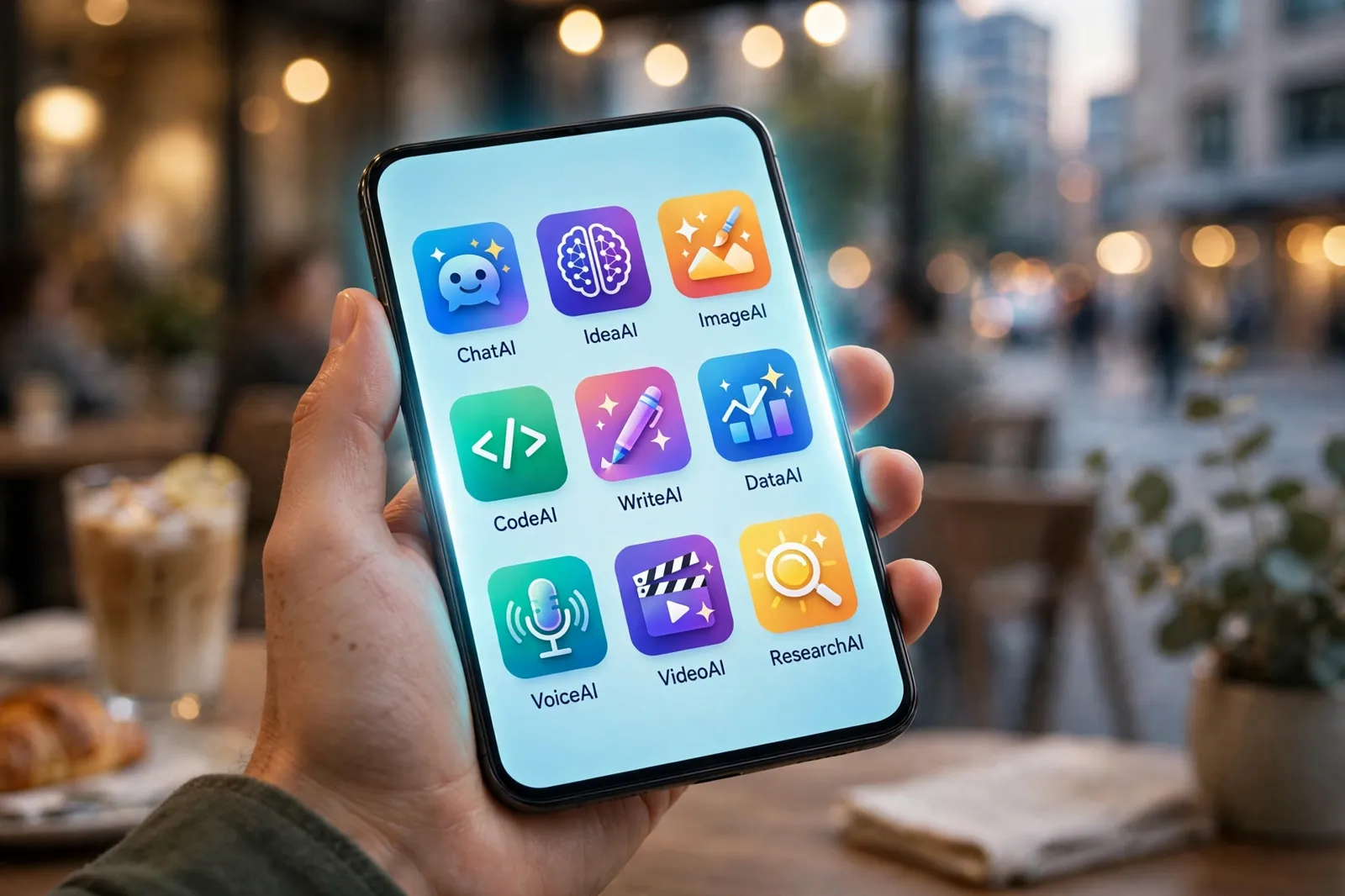
Your phone is where AI actually happens. Not at a desk, not in a browser tab you meant to organize — on the train, in the queue, in the ten minutes before an exam, when a photo needs fixing before it gets posted. The app stores are full of AI apps, but most are the same chatbot wearing different icons, a subscription screen wearing an app, or a wrapper that adds nothing over the website.
So this list is strict. Every app here is a real native app on iPhone and Android, does something genuinely better on a phone than on a computer, and is free to start in a way that is actually useful. Ten apps: chatbots that talk back, research that cites itself, an editor that captions your videos in your pocket, and a meeting recorder that writes the notes for you.
How I picked these AI apps
Four tests decided this list. First, it must be a real app, not a website in a costume — if the mobile site does the same job, the app adds nothing but storage use. Second, it must use the phone: the camera, the microphone, notifications, offline moments, the fact that the phone is with you in the room where life happens. Third, the free tier must be honest — useful without a card, with subscriptions that unlock more rather than unlocking the basics. Fourth, it must exist properly on both platforms, iPhone and Android, because a recommendation that excludes half my readers is not a recommendation.
I also left out the clones. Search either store for "AI chatbot" and you will find hundreds of apps renting the same models behind aggressive paywalls. Every app below is made by the company behind the model or tool itself — the version that gets updates first and scams you never.
The best AI apps to install in 2026
1. ChatGPT — the essential AI app
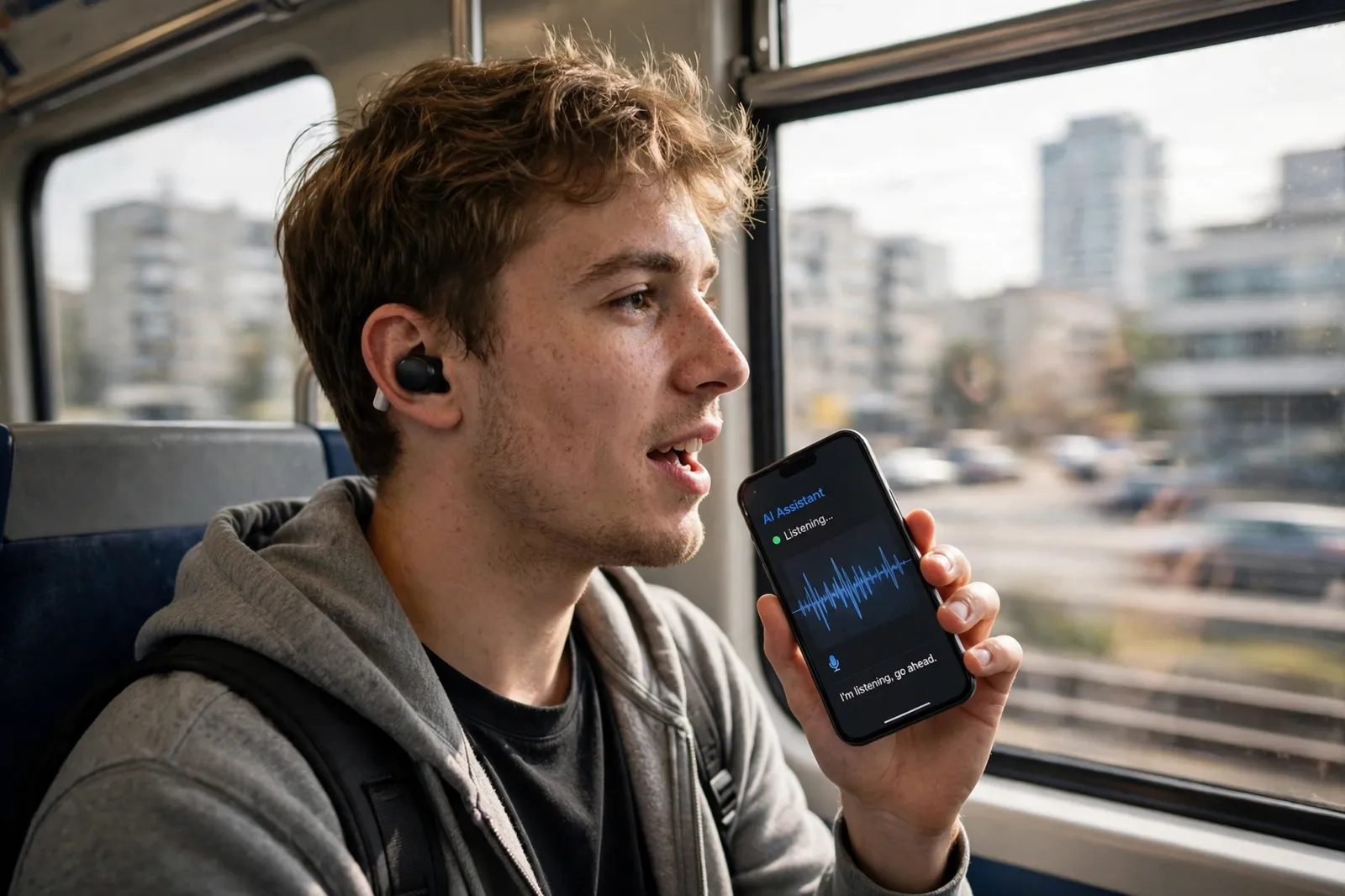
The ChatGPT app earns the first spot the moment you try its voice mode: hold a real back-and-forth conversation while walking, cooking, or revising on the bus, and the desktop version suddenly feels like writing letters. The app also puts the camera to work — show it a broken appliance, a maths problem, a plant you cannot name — plus widgets, lock-screen shortcuts, and conversation sync with your account. The free plan covers voice and everyday chat with limits at busy times. Our full ChatGPT review explains what the paid tiers add, but the free app alone justifies its home-screen spot. If you install one app from this page, it is this one.
2. Google Gemini — best AI app for Android
On Android, Gemini is woven into the phone itself: it can see your screen's context, work across Google apps, and hold flowing Gemini Live conversations you can interrupt mid-sentence. On iPhone it is a strong standalone app with the same Live mode and Google's image tools built in. Free users get a capable model with daily limits, and the app is the quickest route to Google's photo editing and video generation trials. For students in the Google ecosystem it doubles as a study partner that already knows their Drive. The honest weakness: features arrive on Android first, and iPhone users occasionally wait.
3. Claude — best AI app for writing and thinking
The Claude app is the quiet, focused one: open it, think on paper with an AI that writes beautifully and argues honestly. It is the app writers, students, and professionals open when the draft matters — essays, applications, difficult emails, long documents photographed or uploaded from the phone. Voice input is built in, the interface stays out of the way, and answers sync with your desktop sessions. Free usage is metered and resets through the day, so marathon sessions may ask you to pause. For short, quality interactions throughout the day — which is how phones are actually used — that limit rarely matters.
4. Perplexity — best AI app for research
Perplexity's app answers questions the way a good librarian would: quickly, and with the receipts attached. Ask anything — news, prices, a concept from class, whether a rumor is true — and you get a sourced answer you can verify on the spot, which on a phone usually means settling an argument or checking a fact before you repeat it. The app's Discover feed and voice mode are genuinely good, and the free plan includes unlimited basic searches with a ration of deeper Pro Searches. Our Perplexity review goes deeper; on mobile, this is the AI app that makes you harder to fool. Students should keep it beside the picks in our AI tools for students guide.
5. Qwen — the free AI app with no paywall
Alibaba's Qwen app does something almost no rival does: it has no subscription to sell you. Chat, image generation, video generation, document help — free, with daily caps instead of a checkout screen. It is multilingual, quick, and suddenly very relevant: Qwen is the technology Apple Intelligence runs on in China, which tells you how far it has come. The interface is less polished than ChatGPT's and some features feel newer, but as a generous free second opinion on your phone — the app you open when another app's limit says wait — nothing beats it. Budget-conscious users should start here — and see our roundup of the best free AI tools for the full zero-cost stack it belongs to.
6. Microsoft Copilot — best free AI app for images and everyday help
The Copilot app is Microsoft's friendly front door to capable models, and its free tier is quietly generous: chat, voice, and image generation without the hard sell you get elsewhere. It is a particularly good first AI app for less technical family members — big buttons, spoken answers, no settings swamp — and it handles the "quick question, quick image" jobs that make up most real phone use. If your work life runs on Microsoft 365, the same account grows into your documents and email on the paid side. As a free everyday assistant, it is the easiest recommendation on this list to hand to a beginner.
7. Canva — best AI design app
Canva's app turns your phone into a design studio that fits in a pocket: posters, thumbnails, resumes, and a week of social content from templates that genuinely look professional. The AI tools — background remover trials, Magic edits, text-to-image — sit inside the editor where they belong, and the free plan covers most casual work. Anything you start on the phone finishes on the desktop, same account, no exporting rituals. The paid walls are clearly marked, which not every design app can claim. Our Canva review details the free-versus-Pro split; on mobile, Canva is simply where phone-made design happens.
8. CapCut — best AI video editing app
Every short-form creator already knows CapCut: shoot on your phone, and the same phone captions it, cleans the audio, removes the background, and cuts it to the beat. The auto-captions alone justify the install — they are fast, accurate, and styled the way platforms reward — and script-to-video and AI effects keep expanding. More features drift toward the paid tier each year, so check before a big project, but the free core remains the best mobile editing deal in AI. Pair it with the wider workflow in our best AI tools for YouTubers guide once your channel gets serious.
9. Otter.ai — best AI app for meetings and lectures
Otter records the meeting or lecture you are sitting in and hands back a transcript with speakers labeled and a summary you can search later. On a phone it is effortless: tap record, put the phone on the table, pay attention to the humans instead of your notebook. The free plan includes a monthly pool of transcription minutes and per-conversation caps — enough for a student's lectures or a freelancer's client calls. It is the least glamorous app on this list and the one people thank me for most. For the full landscape, see our comparison of the best AI note-taking tools.
10. Remini — best AI photo enhancer app
Remini does one thing, in seconds, on your phone: it takes blurry, old, or low-resolution photos and rebuilds them into sharp images you can actually print or post. Restoring family photos is its party trick, and the free tier lets you test it daily with ads; the results on faces are startling. Subscriptions unlock bulk and video enhancement, and you should watch the auto-renew screen carefully — Remini is pushier than most on this list. Used knowingly, it is the best example of phone AI doing a job no free website does as smoothly.
Do not forget the AI already built into your phone
Before installing anything, check what your phone already does. Apple Intelligence on recent iPhones handles writing tools in any app, notification summaries, photo cleanup, and Visual Intelligence from the camera — and in China it now runs partly on Alibaba's Qwen, as our Apple Intelligence in China coverage explains. Galaxy AI on Samsung phones adds live call translation, note summaries, and chat assistance baked into the keyboard. Pixel phones carry Gemini deepest of all, including call screening that talks to spammers so you do not have to.
The built-in tools win on convenience: no install, no account, no subscription screen. They lose on depth — none of them researches with citations like Perplexity, edits video like CapCut, or writes like Claude. The sensible setup is both: let the phone's own AI handle the system-level chores, and keep two or three apps from this list for the jobs that deserve a specialist.
The apps compared
| App | Platforms | Best for | Free tier |
|---|---|---|---|
| ChatGPT | iPhone, Android | Voice conversations, all-round help | Free with daily limits |
| Gemini | iPhone, Android | Android integration, Live voice | Free with daily limits |
| Claude | iPhone, Android | Writing and careful thinking | Free, metered through the day |
| Perplexity | iPhone, Android | Research with sources | Free; deep searches rationed |
| Qwen | iPhone, Android | Generous free generation | Free; daily caps, no paid tier |
| Copilot | iPhone, Android | Beginners, quick images | Free and generous |
| Canva | iPhone, Android | Design on the go | Free; premium elements paid |
| CapCut | iPhone, Android | Short-form video editing | Free core; some AI paid |
| Otter.ai | iPhone, Android | Meeting and lecture notes | Free monthly minutes pool |
| Remini | iPhone, Android | Photo restoration | Free with ads; subscription for bulk |
Which AI app should you install first?
If you are a student: Perplexity first. Cited answers before an exam, on the bus, in the library — it changes how you check facts within a week. Add Otter before your next lecture-heavy course and ChatGPT for practice questions. Three installs, zero cost, and your phone becomes the study partner your bag was too small for.
If you are a creator: CapCut first, no debate — shoot, caption, and post from one app. Then Canva for thumbnails and covers, and ChatGPT for hooks and titles while you are still in the filming chair. Remini joins the kit the day you start rescuing older footage or photos for a post.
If you are a professional: Otter and Claude. Otter turns every meeting into searchable notes before you reach your desk, and Claude handles the follow-up email, the summary, and the difficult message on the train home. Copilot is the swap if your company lives in Microsoft 365.
If you are new to AI entirely: Copilot or Qwen. Both are free, friendly, and impossible to break. Talk to them like a person, ask foolish questions, generate a silly image. A weekend of play teaches you more than any guide — including, with respect, this one. Then come back and install the specialist your life actually needs.
Common mistakes with AI apps
Mistake 1: Installing every chatbot. ChatGPT, Gemini, Claude, Copilot, Qwen, and Perplexity overlap by about eighty percent. Two chatbots plus specialists — an editor, a note-taker — is a setup. Six chatbots is a folder you never open.
Mistake 2: Subscribing inside the app on day one. App-store subscriptions are the most expensive way to buy most of these services, and free tiers are more capable than the paywall screens suggest. Use the free app for two weeks; if you upgrade, check the web price first — it is often lower.
Mistake 3: Ignoring permissions. An AI app that wants your contacts, microphone, and full photo library before doing anything is telling you something. Grant permissions when a feature needs them, not at the welcome screen, and review them once a season.
Mistake 4: Recording people without telling them. Note-taking apps are wonderful and, in many places, legally sensitive. Announce the recording, every time. The social cost of one surprise transcript is higher than any subscription on this page.
Pro tips for your AI app setup
Put voice on your lock screen. Both major chatbots let you add shortcuts or widgets. The ten seconds saved per use is the difference between an AI habit and an AI app you forget exists.
Download for offline life. Otter records without a connection and syncs later; chats and editors mostly need the internet. Know which of your apps works on a plane or in a basement lecture hall before you rely on it there.
Check the renewal date the day you subscribe. Trials in app stores auto-renew quietly. A calendar note costs nothing; a surprise annual charge is the most common AI app complaint in existence.
Language learning counts too. If learning a language is your goal, dedicated apps beat general chatbots for structure — our guide to the best AI language learning apps picks the ones learners actually stick with.
Frequently Asked Questions
What is the best AI app overall in 2026?
The ChatGPT app, for the strength of its voice mode and the breadth of what one free account covers — chat, images, camera questions, and files. Gemini is the better pick for Android users who want the assistant built into the phone, and Perplexity wins for anyone whose main job is checking facts. "Best" depends on the job, which is why this list is organized by job rather than by logo.
Are these AI apps really free?
All ten are free to download with useful free tiers — no card needed to start. Each has a subscription that removes limits or adds premium features, and two (Qwen and Copilot) stand out for how much they give away. Where an app is ad-supported on free, like Remini, the table says so. Nothing on this list is a three-day trial dressed as a free app.
Which AI app is best for students?
Perplexity for research with citable sources, Otter for lectures, and ChatGPT for explanations and practice questions — all free. Add Gemini if your school runs on Google accounts. Our AI tools for students guide builds the full study system around these apps, including revision workflows and note organization.
Do AI apps work offline?
Mostly not — the models live in data centers, so chatbots and generators need a connection. Recording apps like Otter capture offline and process when you reconnect, and some apps cache your history for reading. If offline matters to you (flights, rural travel, basement classrooms), test each app in airplane mode before the day you depend on it.
Are AI apps safe for my photos and recordings?
The major apps on this list are from established companies with published privacy policies, and the chatbots let you opt out of training on your data in settings — do that on day one. Be stricter with unknown clone apps, which often exist to harvest data and subscriptions. And never upload documents you are not allowed to share, like an employer's files, to any consumer app.
iPhone or Android — which is better for AI apps?
In 2026, effectively tied. Every app on this list ships on both, usually with the same features. Android gets Gemini's deepest system integration; iPhone gets Apple Intelligence features woven into the OS itself, with third-party apps on top. Choose your phone for other reasons — your AI apps will be fine either way.
How many AI apps should I have?
Three or four. One chatbot (ChatGPT or Gemini), one specialist for facts (Perplexity), and one or two for the creative or practical work you actually do — CapCut, Canva, Otter, or Remini. Everything else lives happily as a website. A lean home screen means the apps you kept get used daily, which is where the value is.
What is the best AI app for making videos?
CapCut, and it is not close for short-form. Auto-captions, background removal, beat-sync cuts, and script-to-video cover the whole TikTok, Reels, and Shorts workflow inside one free app. Canva's app handles simpler video — slideshows, ads, animated posts — and is friendlier for non-editors. Long-form creators will still finish on a desktop editor, but the phone now does everything up to that final polish.
Which AI app is best for photos?
For enhancing and restoring, Remini — nothing free rebuilds a blurry face as convincingly. For everything else photographic, the answer is probably already on your phone: Google Photos and Apple Photos both carry AI search, cleanup, and editing that improve with every update, and Gemini's image tools handle the creative edits. Dedicated editor apps earn their install when you need one specific trick — restoration, background swaps, batch enhancement — not as another gallery.
Do AI apps drain the battery?
Voice conversations and video editing are the heavy ones — an hour of CapCut will show in your battery graph, and live voice modes keep the microphone and radios busy. Ordinary chat and research apps use little more power than a browser. The bigger cost is attention, not electricity: every app here would love to notify you into a subscription. Silence the marketing notifications in week one and keep the useful ones, like Otter's "your summary is ready."
Can AI apps replace the desktop versions?
For daily use, mostly yes — chat, research, quick edits, and recordings are all phone-native jobs now. Heavy work still belongs on a big screen: long documents, detailed video timelines, big design projects. The good news is every app here syncs with its desktop counterpart under one account, so the phone starts the job and the desk finishes it, or the other way around.
Reader reviews
Loading reviews…